
How to Access Firewall | methods to access firewall | What is Panorama | Web | Rest API

Summary Insights:
- In our journey from Basic to Advanced Network security & Next Generation Firewall, today in this 4th Discussion, I will explain to you the Below Queries regarding firewall access methods.
Interview Questions:
- How many methods to access the firewall?
- What is Panorama?
- How many Palo Alto firewalls need panorama?
- How to access Firewall for the first time?
- What is the difference between Firewall & Panorama?
Below queries will be covered:
- How to access Palo Alto Firewall?
- What is the difference b/w physical first-time FW access & through VM/EVE series Firewall?
- How many methods for accessing firewalls?
If you want to learn theory concepts as well then, I already explain Firewall, Zone & VPN topics in my previous articles.
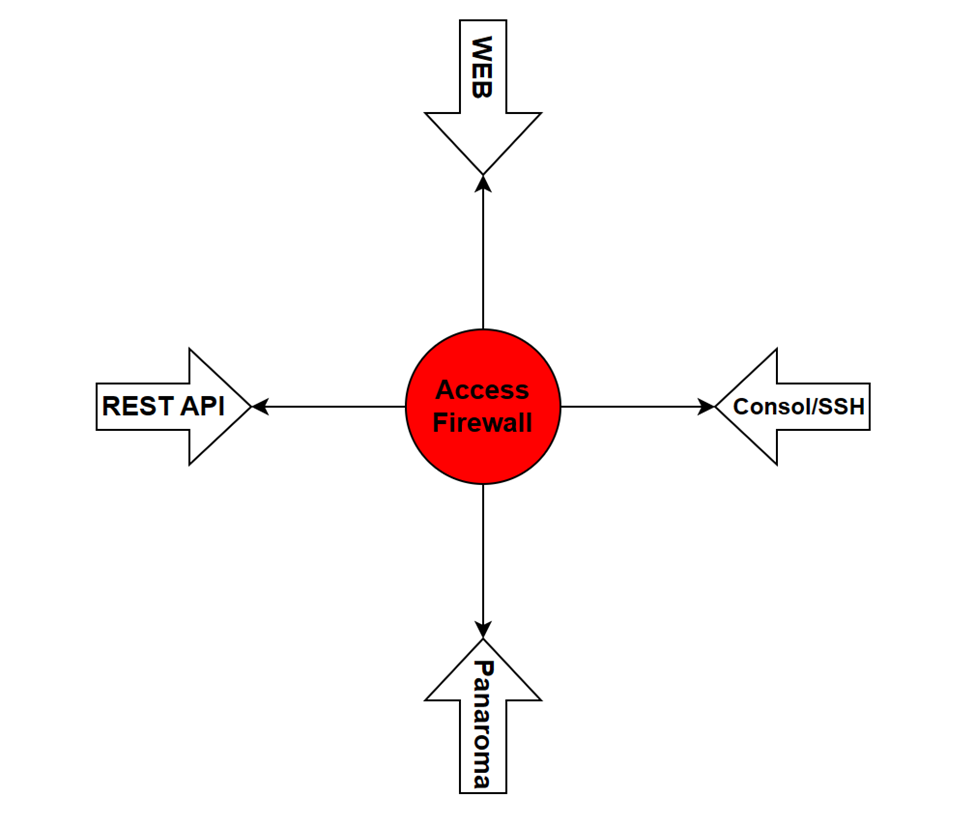
There are four methods to access Palo Alto Firewall, mostly the same for other vendors also.
- Through Web (http, https)
- Console/Telnet/SSH
- Centralized management (Panorama)
- REST XML API programming method
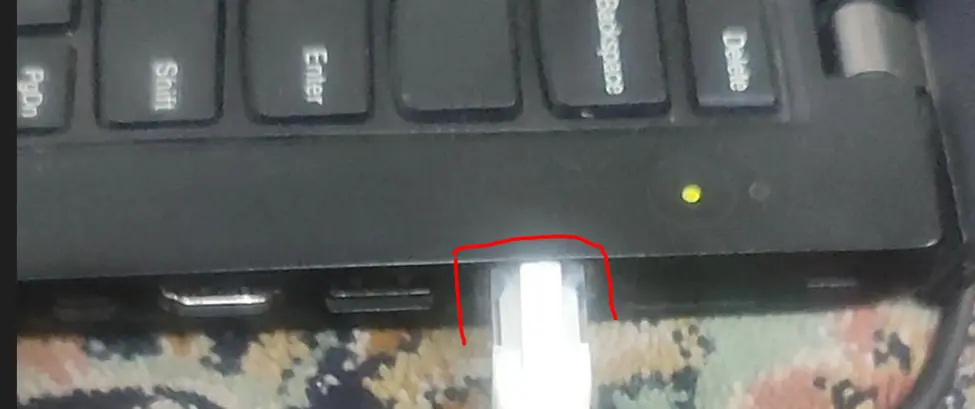
First, I will show the method of accessing the first-time Practical Hardware Palo Alto PA-850 Series Firewall. As default management IP address of Palo Alto is 192.168.1.1 & configure your laptop/PC IP to 192.168.1.2/24 from the Network Adapter option.
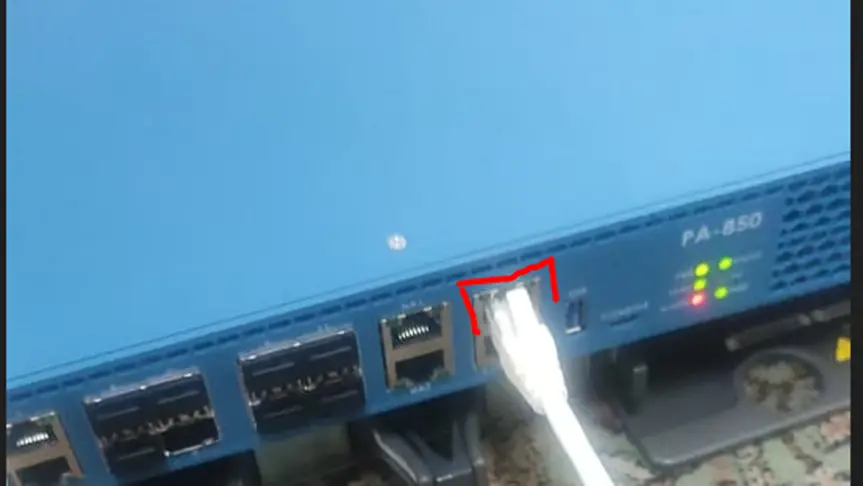
Now connect the LAN cable of your laptop with the MGT port of the firewall mentioned in the below picture.
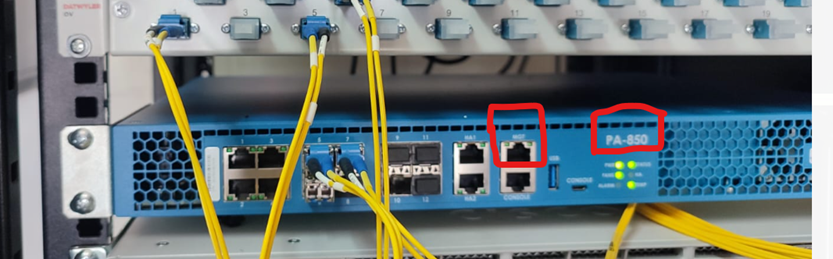
LAN cable connected with Firewall management port
The Laptop LAN port connected
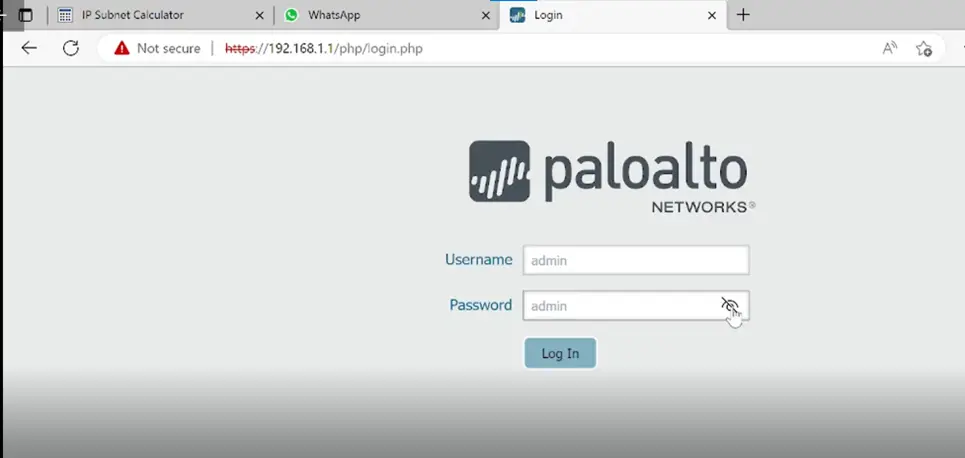
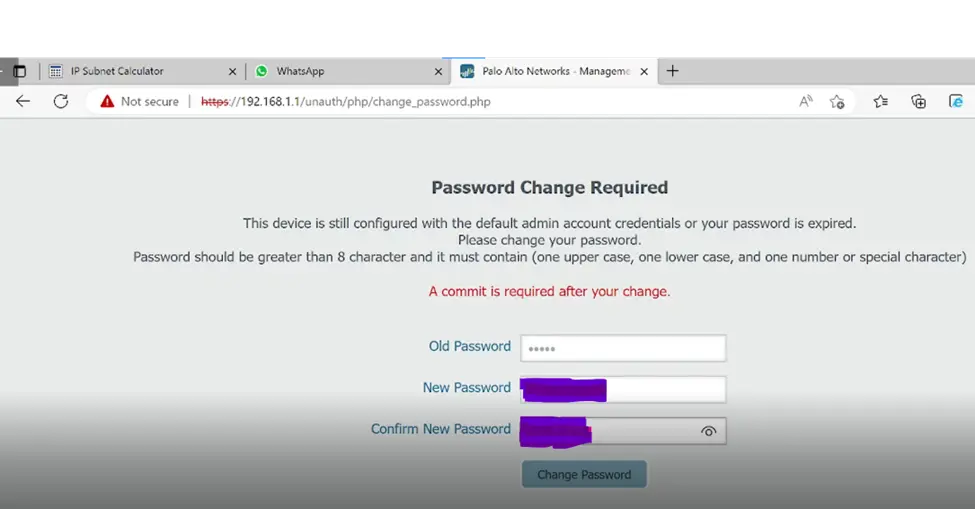
During the first log in changing the password is mandatory, put the old & set the new password the same like above
· You will be logged out automatically
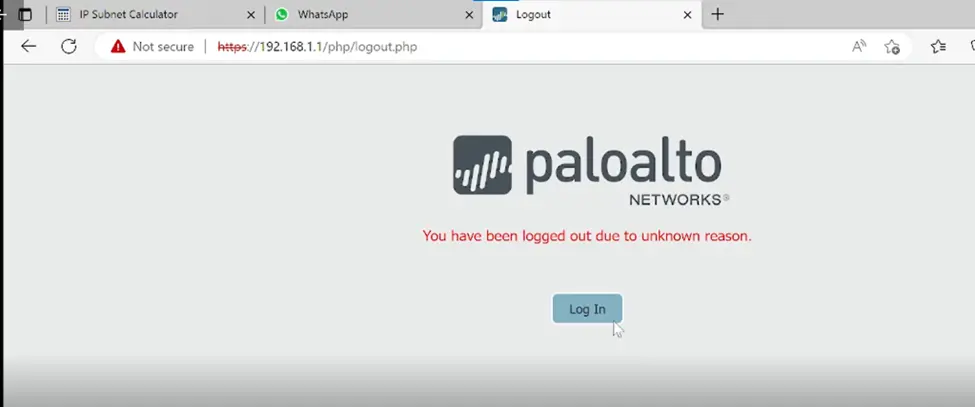
· Now log in with the new password.
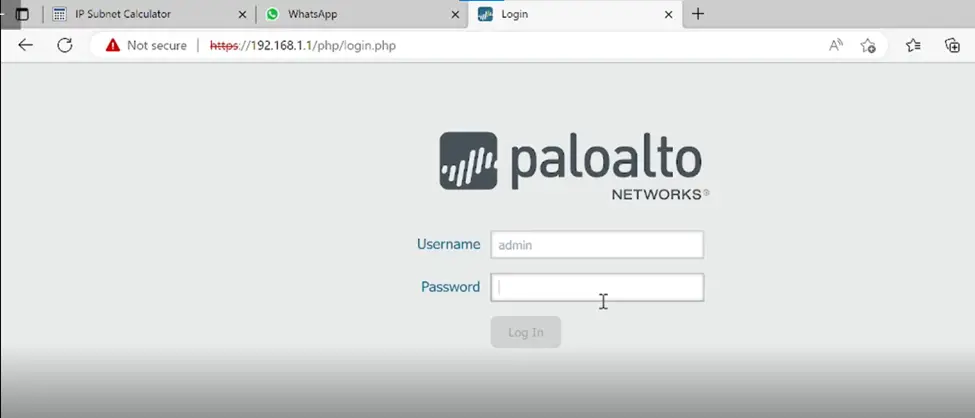
· After logging PAN-OS 9.1 will show just click on close
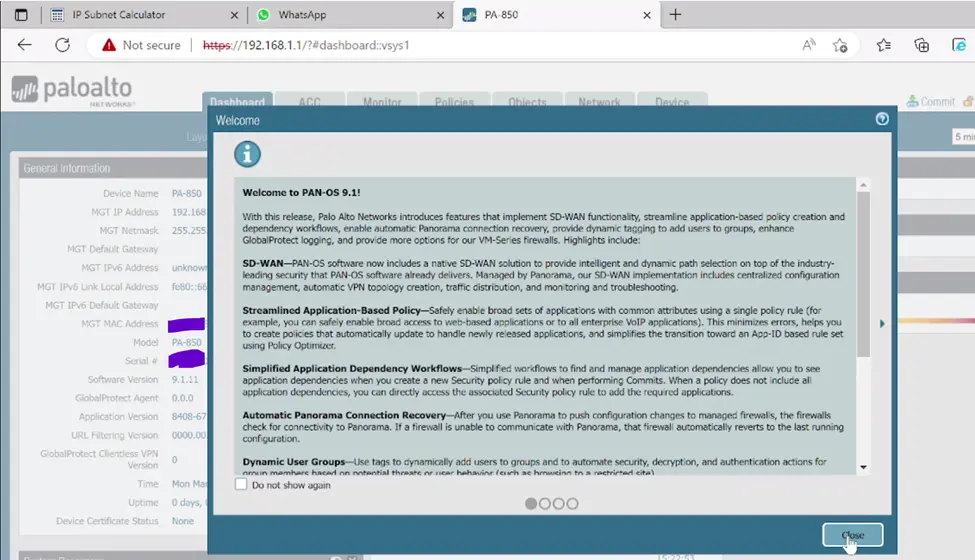
Now let me show the login method on the VM/EVE-NG image of the Palo Alto firewall. There are a few differences noted below
# set deviceconfig system ip-address x.x.x.x netmask x.x.x.x default-gateway x.x.x.x
Then access through the browser same as in the practical firewall you accessed above.
Check the below picture for the VM/EVE image step by step

· First time asking to change password same as in practical PA on the web we did it the start of this article.
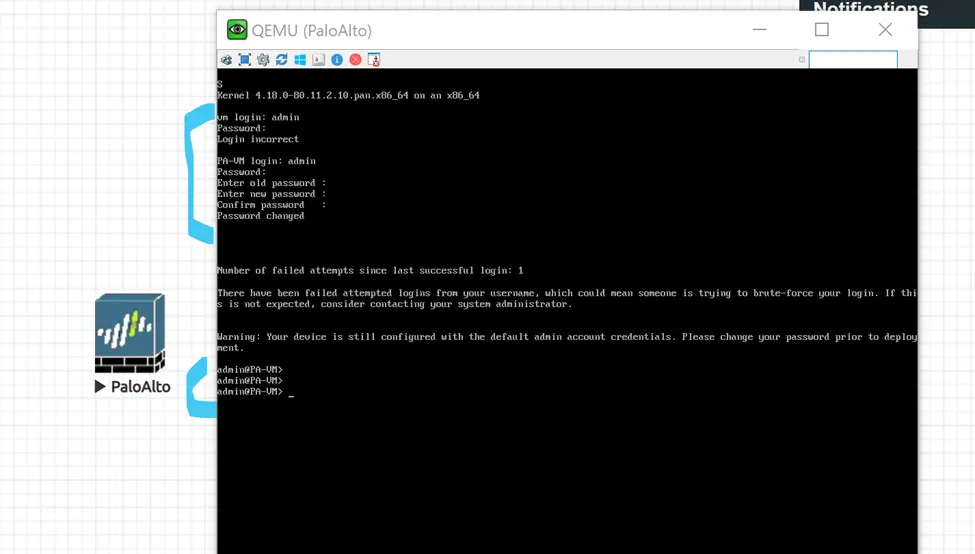
· Delete DHCP client configuration
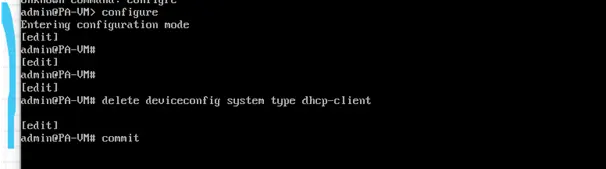
Configure IP address & gateway
· Then access through the Web by putting that IP address https://X.X.X.X
Panorama:
If there are multiples firewall installed in your Network, as for configuration & monitoring tasks need to log in to the firewall one by one & it will take time & less efficiency. Panorama is the solution for this, it provides centralized access, management & log monitoring for all firewalls.
At least how many firewalls need panorama?
As per vendor recommendation if 6 or more firewalls are deployed in Network then deploy panorama as well.
In my later posts, I will show configurations of Panorama & how to add/sync firewalls in Panorama.
Keep Learning, Keep Reading, and Keep Growing. IT & IP is the future.