
How to Access and Install an Operating System on an xFusion 2288H V6 Server| Server Part-1

Summary Insights:
- Initialization and basic server setup are essential for every enterprise network. Mostly Network & IT engineers are worried about multi-vendors servers setup especially the ones who haven’t worked on the system/server side before, In this article I will explain to you from server power-up to OS installation concepts on xFusion 2288H V6 but you will be able to work on any vendors system.
After reading this article below some questions will also be cleared.
Questions & Answer:
- What is different b/w VGA & OOB access?
- What is difference b/w BMC & OOB?
- What is the default IP of the Xfusion server BMC?
- Default IP of Dell, HP server?
- How to configure RAID in the xfusion server?
- How to install OS on xFusion server?
- How to access virtual console of xFusion server?
Today will cover xfusion 2288H V6 server complete end to end setup and In this server series in the next posts, I will continue the VMware ESXI & vCenter hypervisor installation, Virtualization, Cluster creation, VM migration on multi vendor solutions like VMware , Microsoft Hyper-V & some private cloud setups. Keep reading.
Methods to Access a Physical Server:
There are mainly two methods to access any Server.
- Through VGA port connect LCD, Keyboard & mouse to server.
- OOB(Out of band management) Connect laptop UTP Cable to server.
OOB can provide remote monitoring, Hardware health check, OS access & remote power controller of server etc. Different vendor use different terms for OOB below table is for multi-vendor OOB terminology.
For example, the OOB access of the xfusion server is called BMC or IPMI port. same for Dell iDRAC & iLO of HP servers.
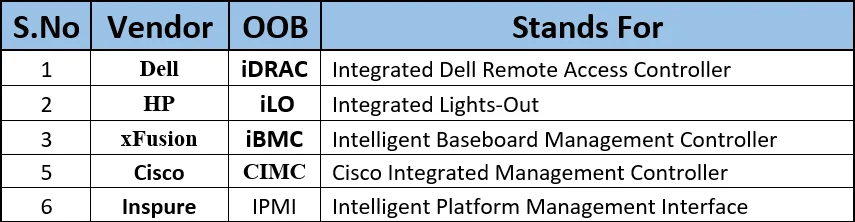
The Interesting thing is we can get the VGA feature through the OOB method as well. Now without requiring any LCD, Keyboard, mouse & engineer physical presence to access server through the OOB, that’s why in this post I will focus on OOB part for the xfusion server but the concepts will be same for Dell, HP, inspur or any other server manufacture.
xFusion Server Initialization Using OOB Management:
Lets start Xfusion 2288 V6 setup through OOB. Default IP Address of Xfusion OOB/iBMC LAN Port is 192.168.2.100/24. Connect your laptop with server mgmt/OOB port through LAN UTP cable. Below screenshot of server backside.

Change laptop IP address to the same default subnet of xfusion server.
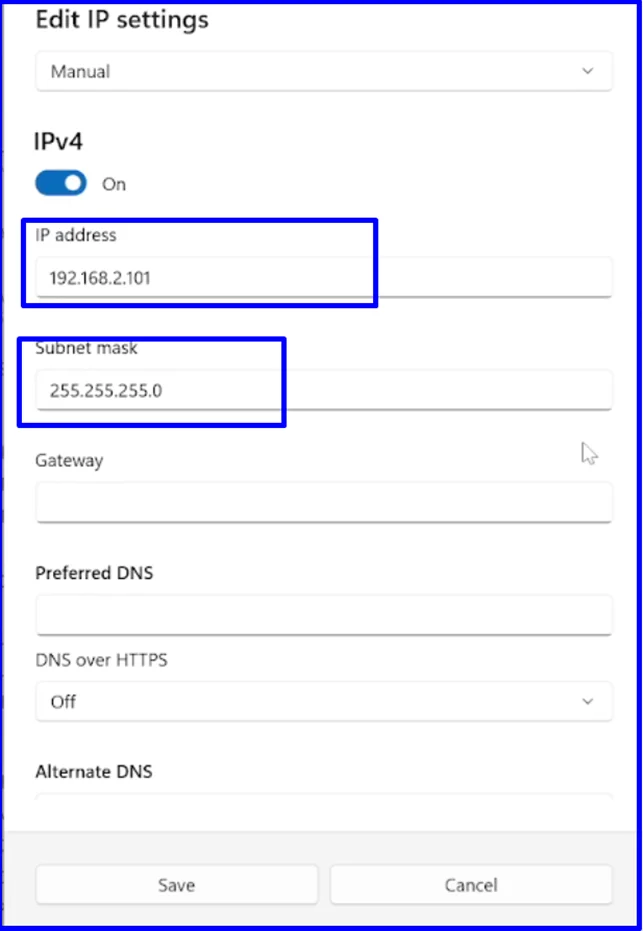
Before accessing through GUI check if its ping able from laptop ,in my case its pingable.

Now access through web GUI interface ,default username & password of xfusion server is Administrator & Admin@9000.
Password change promt will appear just click on change later if you don’t want to change password.
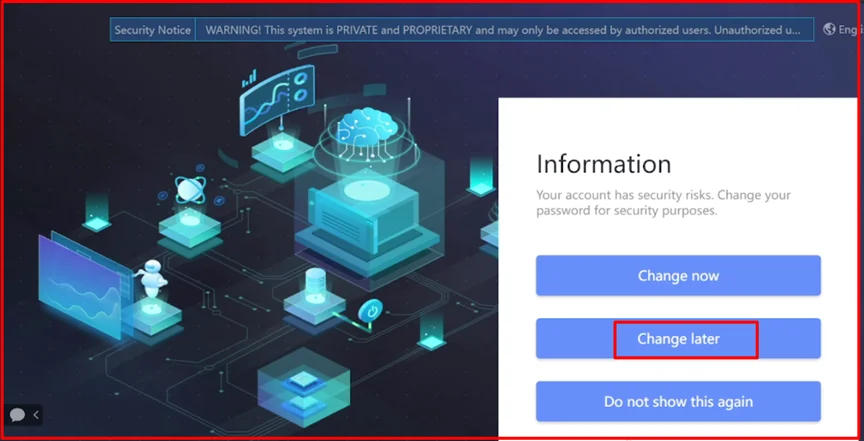
Every Network have specific subnets plan for OOB , Now lets change the default IP address to our customer required Network.
On the top row click on iBMC setting then–> Network setting ,select –>ipv4 ,in my case I am going to configure manual if in your case there is DHCP server you can select as per situation.
I am hiding IP details due to privacy , you can configure as per your customer plan.

Click on save then confirm after that you will be disconnected as server IP has changed ,For next time login configure same subnet IP address on laptop.

How to Configure RIAD:
Next step is to configure RAID.
Go to system–> Storage management —>click on + sign to expand PCi card –>click on Add –> new prompt window will open then select RAID level as you want. Below screenshot for more details.

In my scenario there are four Disk in xfusion 2228H V6 ,after selecting RAID 1 then choose which Disk you want to do RAID. Click on save & continue.

After RAID configuration logical drive & RAID level 1 has been created ,

Important point after RAID you need to set that logical drive as a Boot drive for OS, as after OS installation it will boot OS from that Raid drive. Check below screenshot.
Select logical drive then click on setting –> new prompt window will open then choose yes in Boot drive option .


Operating System Installation:
There are three different way to install Operating system on server.
- Direct installation of OS on server.
- Hyper visor Type-1 Installation.
- Hyper visor Type-2 Installation.
Our main task today for method 1 Direct installation through OOB GUI access but let me explain all three with short summary.
Hyper visor type 1 is directly installed on server then create multiples VMs on that,for this Bare metal Hypervisor term is also used. For example VMware ESXI ,Hyper-V etc , in next post will explain this in more details.
For Type-2 Hypervisor the OS installation is pre requisite ,means first install OS then inside OS install type 2 hypervisor I-e VMware Workstation virtual box etc maily for testing purpose.
Comeback to our main task that direct installation of OS through OOB GUI on fusion server. First download operating system iso file from offical website or take from customer in flash. Login to server web access click on system —> then BIOS settings as showed below.

Change preferred boot medium to CD/DVD , by-default is No Override then click on save.

Access virtual console of server under Home–>then start –> click HTML5 integrated remote.

After clicking new tab will be opened as a black screen, Horizontally on top row there are different button for different feature as mentioned below.

In my case I have downlaoded Window sever 2022 ISO file ,click on CD/DVD key & mount/connect the iso file in my laptop , below screenshot for more details.
Click on three dots then upload the file then click on connect.

From Boot key select CD/DVD or BIOS setup to boot the file.

Click on power button & restart the server , then press F11 key to boot automatically or select as below.

During restart press F11 ,some time only F11 not working then press F11 with Fn or Ctrl key together.

some time will ask for password like below just click on white area & enter that default password (Admin@9000) then enter.

Click on continue as highlighted below.

On top below message to press any key to boot from CD or DVC , just press any key from keyboard.

The OS file loading will be start. wait for few minutes.

Select required OS , in my case I have selected Standard Evaluation Desktop experience version. click next.

Check license terms then next

Its almost same like normal window installation in PC/Laptop, click on custom.

in my case no need any partition I am installing on that one disk.

Wait till finish all installation steps.

It will restart automatically this time no need press any key , all process getting ready. Window interface will display for username & password.

Click on combination key option & press ctrl+Alt+Delete then enter the password you set.

Finally installed.

Next Post Summary:
Now in next post I will continue very important topic VMware ESXI & V-center & virtualization. After that will write about how to install & setup Hyper-V solution on same xFusion server. for best understanding will compare multiple virtualization solution like VMWare vs Hyper-V & also with others.