
How to Create Cluster, Add Hosts & Create Virtual Machines (VMs) in VMware vCenter

Summary Insights:
- Today’s post will focus on creating a cluster in vCenter & adding host servers and then will show VM creations as well. If you read my last two posts, I explained OS, ESXi & vCenter installation in very detail. This is an extension of the last two posts.
In my last article of ESXi & vCenter installation I covered till vCenter installation, let me continue from there.
Key Questions Answered:
❓How to setup VMware vSphere
❓How to create cluster in vCenter
❓How to add Host servers in vCenter
❓How to create Virtual machine in vCenter
❓How to install Window server 2022 OS in VM
❓How to upload OS file in vCenter
Setup VMware vCenter:
We had install & assign IP address to vCenter now Access vCenter IP address through GUI in browser.

Put username & password.

Below is the main Graphical interface of vCenter, click on Setup

Click on Next to go to stage 2

Fill all vCenter Server Configuration if configured before it will detect automatically then Next

Fill SSO configuration to set domain name, username & password
I configured vshpere.local domain name.

Configure CEIP , I uncheck the CEIP option due to compliance or security reason, let me explain what is CEIP actually
Customer Experience Improvement Program (CEIP):
It’s an optional program by VMware that, if enabled, collects product usage data to help VMware improve its products and services.

Review all detail & finish

Click ok to continue & wait till completion

Installation has started


Login again & click on Launch Vshpere client

Now login with username & @ domain name
Below [email protected] l we created during setup.

This is the new interface of vSphere Client after setup

Create DataCenter in vSphere Client:
Right click on that vCenter & create New Datacenter

Give name & click ok

Create Cluster in vSphere Client:
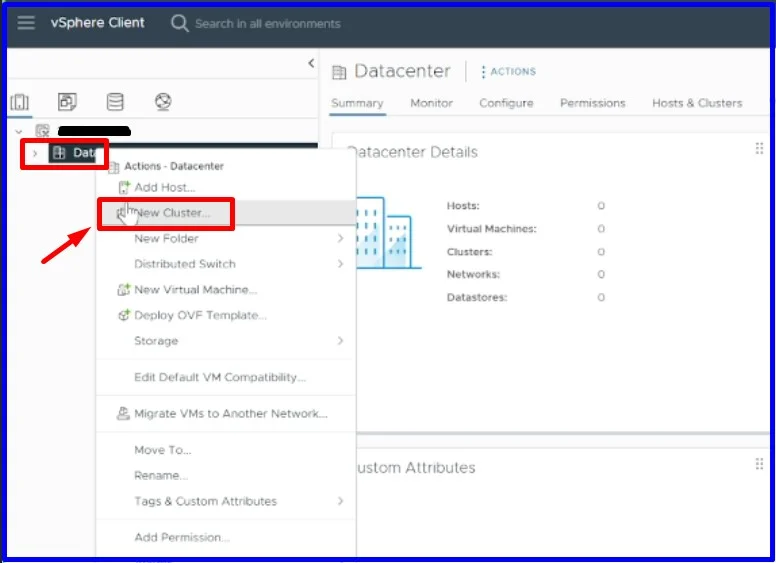
Now lets create New cluster by right clicking on Data center we created
Set cluster name , I configure Cluster name is VSAN & set other parameters as per requirement

Review & finished

Add Host in vCenter:
Next How to add host servers in vCenter cluster,Click on add under host section

In my project there are three host server to add in vCenter , just write the IP address of hosts & credential ,you can select “use the same credentials for all host”

Choose all and Ok

Verify host summary

All three host servers has been added in cluster

Its showing under cluster name VSAN

Uploading ISO File:
After adding three host servers now, the next step is to create VM, I will use Window server 2022 OS for VM.
Before creating VM need to upload the ISO Window server 2022 file to the vCenter.
Let me create one datastore for ISO file. Below are the details to upload ISO image.
Right click on host or cluster created in our case cluster name is VSAN.
Then storage –> New Datastore

There are different types of storage as we creating for VMs ,just select the first one VMFS then next

Assign name & select the storage where you want to create this new datastore,
Storage can be local storage of server & external SAN storage as well, don’t confuse just select one disk as below ,for the SAN & storage types I will write one other post to explain complete project server & external storage communication.

Select VMFS version 6, this is new version & introduced in vSphere 6.5+ , as our vSphere version is 8.0

Partition configuration, I am going with default one in next , maybe in your case the size is different

Review & finish

Datastore has been created

Next select datastore you created above , then create new folder give any name to folder i-e ISO, then in that folder upload Window Server ISO file, I showed both steps in one screenshot below but it’s two steps first created folder then upload file.

Now ISO file uploaded finally, lets create VM
Create Virtual Machine (VM):
Right click on Cluster or host then –> New Virtual Machine

There are different options create new virtual machines or in my case I already converted to template , I am creating from template

Click on VM template & select the iso file template

Give name to virtual machine, for me its management server

Select the storage for VM, as we created one datastore name SANDatastorage

If you want to customize different parameters just select as per your requirements

Next

Customize VM detail as per your requirements, like CPU,RAM & memory

Review VM details & finish

Finally, VM has created in vSphere, wait few minutes then right click to start then click on Launch web consol to access Window server 2022 Graphical interface

Its opened in new tab , click Ctrl+Alt+Delete from top right corner then put password.

Window server 2022 server manager,

Now you can use this VM for multiple purposes i-e install any customer application.
Next Post Plan:
Next post I will write a complete project of VMware virtualization & external storage IPSAN detection & Network connectivity of servers & storage through switches.
I conceive this web site has got some real superb info for everyone : D.
Thank you! I’m glad the information on the site is helping. More posts coming soon 😊