
How to Connect FortiGate Firewall with the Internet & Activate License:

Summary Insights:
- In the Last session, we explained Fortinet firewall registration, firmware upgrade & license downloading & activation.
- But to activate the license properly Fortinet firewall once must be connected to the internet.
Interview Questions:
- How to connect the FortiGate firewall to the internet?
- How to configure static routing in the FortiGate firewall?
- What are the license types in the Fortinet firewall
- Which port will select in the interface option of static routing in the FortiGate firewall?
For this, we need below requirements:
- Internet Device (Modem & internet LAN Cable)
- Static Routing configurations on Fortinet Firewall
- Activate the license
Let’s start!!!
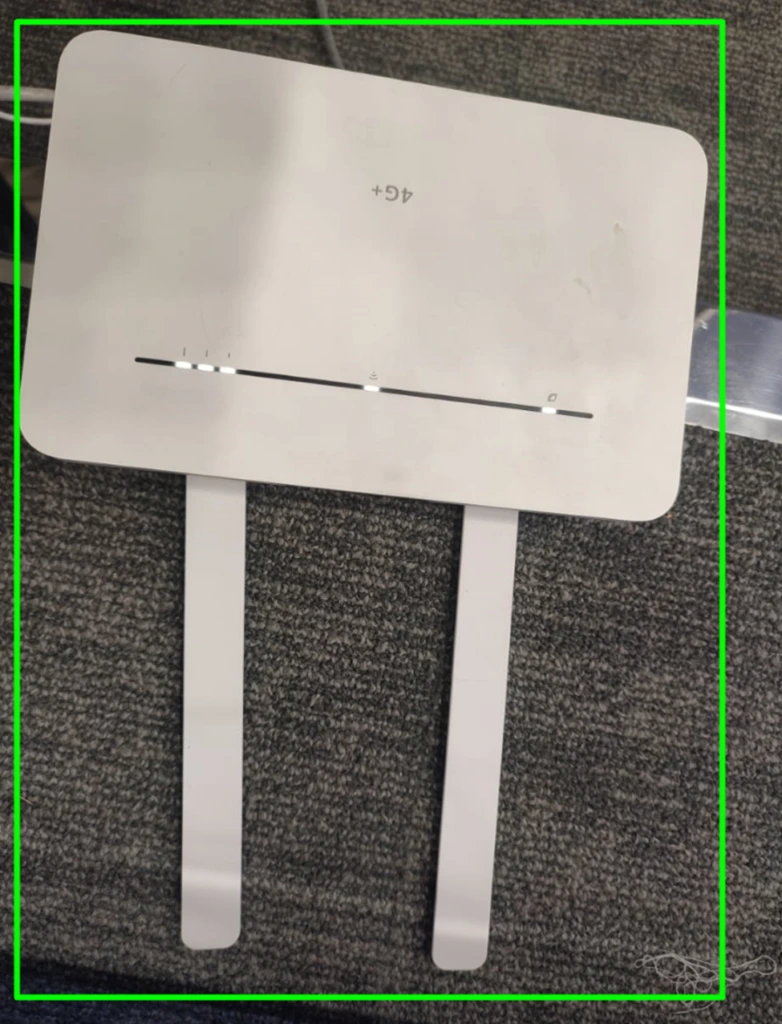
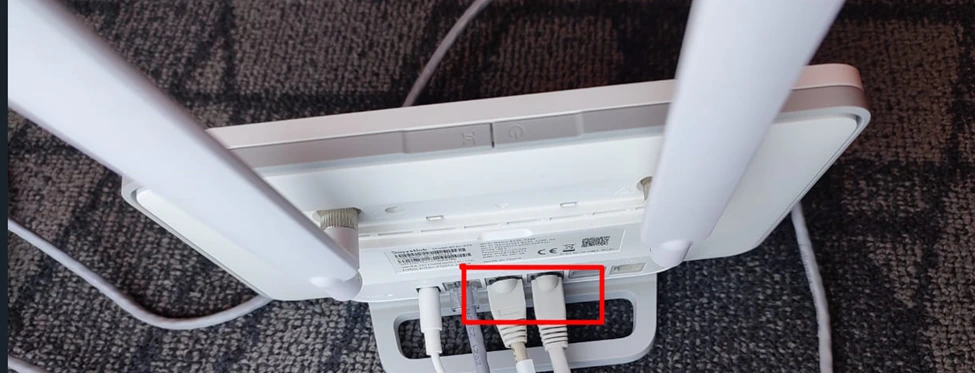
In my case, the laptop is connected to WIFI Below is a picture of the internet modem Device,
First, I need to check my laptop’s wireless Gateway, the modem IP by running #ipconfig in the command line interface(cmd) in the window device.
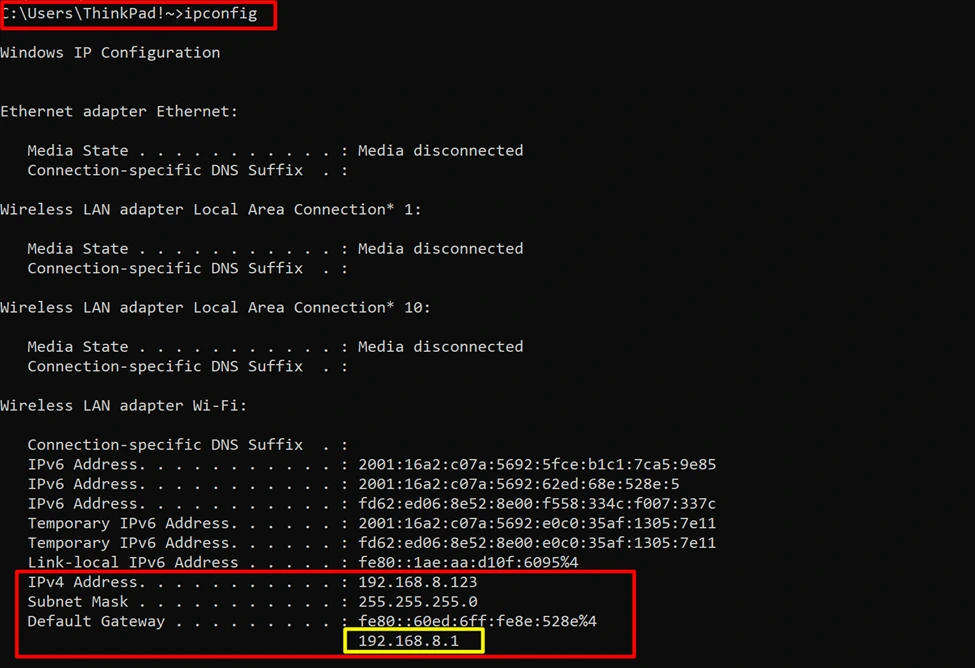
My internet Device IP address is 192.168.8.1. & LAN subnet is 192.168.8.0 with subnet mask 255.255.255.0/24.
Now let’s connect the LAN cable on one side is connect Firewall Port3 (you can connect any other port as well) & another side of the cable will be connected to the modem RJ45 port.
Below are pictures for reference
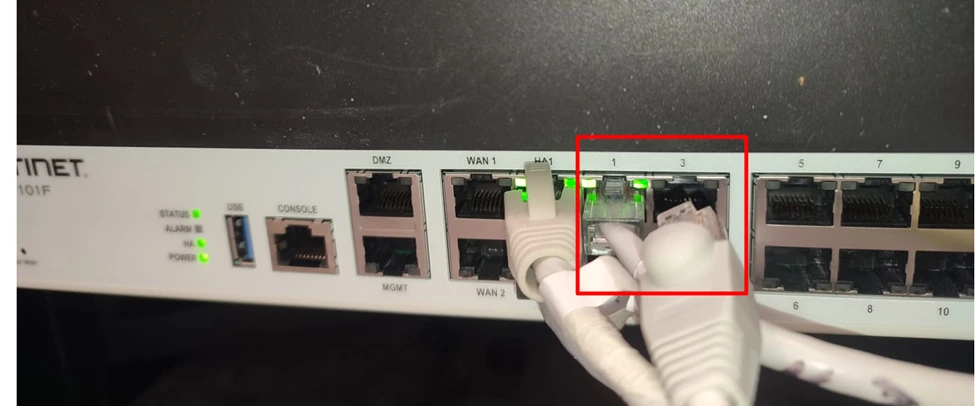
FortiGate firewall 101F Port-3 LAN cable connected
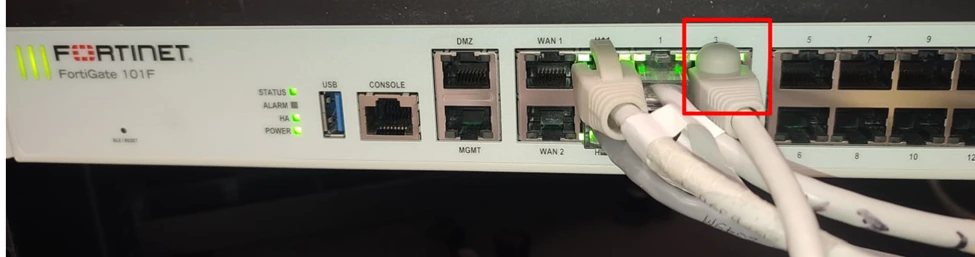
Another side is Modem wireless device connected, Below picture
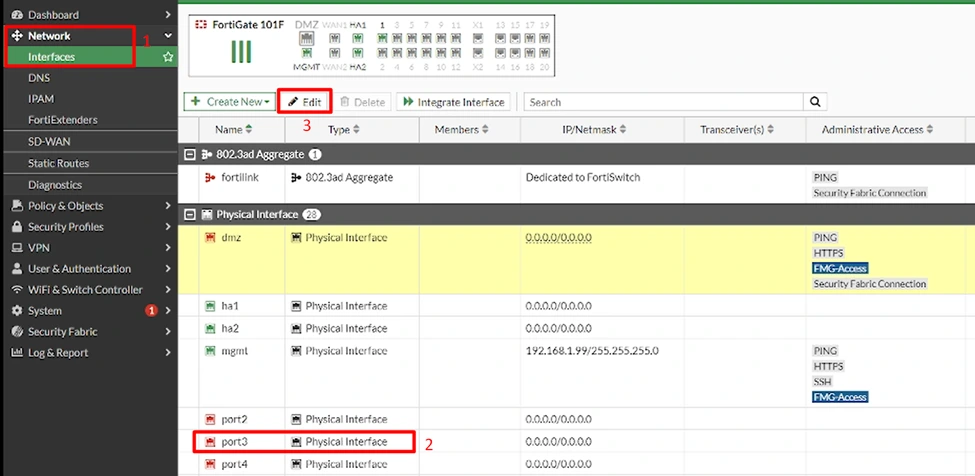
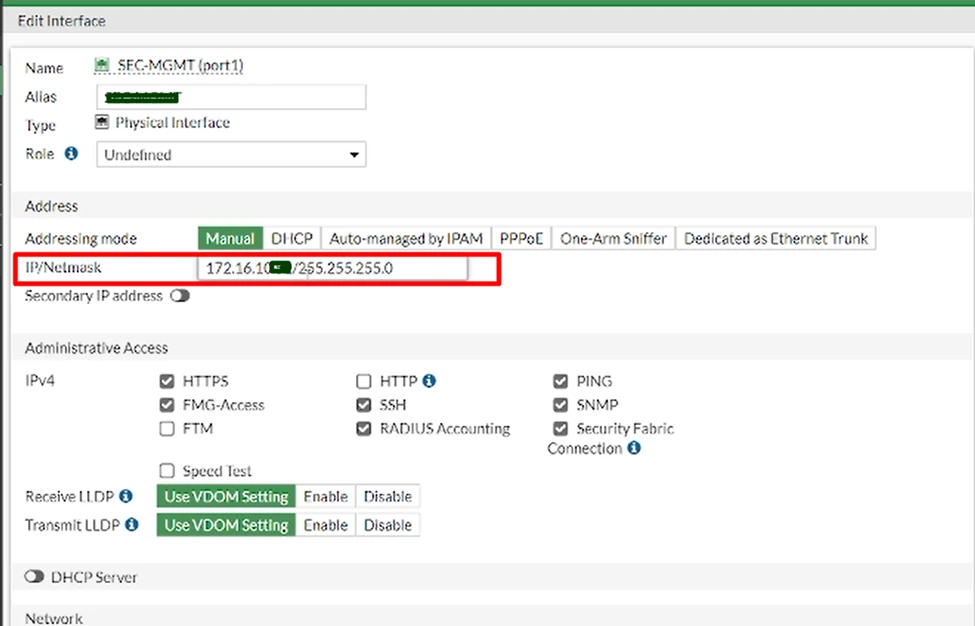
Now assign one free IP to the Firewall port-3 (check different IPs by pinging one by one or will get by DHCP) from the above subnet 192.168.8.0.
Below screenshot of configuring the IP Address on the firewall port
Assign the IP Address below screenshot for reference
Firewall Static routing configurations:
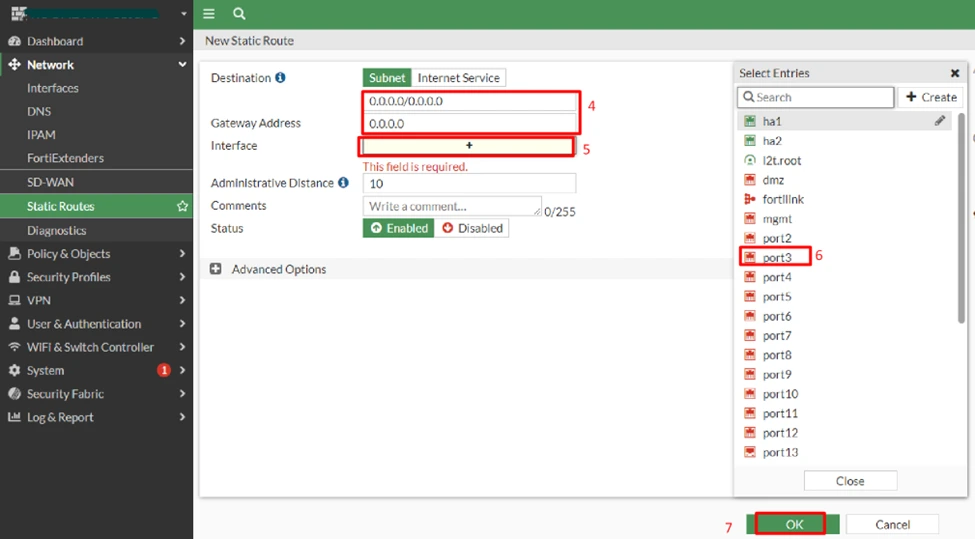
Configure static routing on FortiGate Firewall and the gateway IP will be Modem IP Address 192.168.8.1 we checked that above through the CLI of the laptop.
Below screenshot of FortiGate firewall static routing configurations
Destination will be any toward internet 0.0.0.0/0.0.0.0 & put Gateway address 192.168.8.1 modem IP.
In our case interface is port-3 outer interface toward the internet. Then click OK.

Now open the CLI of FortiGate firewall & test Google IP by executing ping.
Cli prompt from the top right side >_

Ping Google DNS IP Address 8.8.8.8, below screenshot just for reference.

The below screenshot is without internet connectivity as only upload the license file that I explained to you in my previous post how to download & upload the license file.
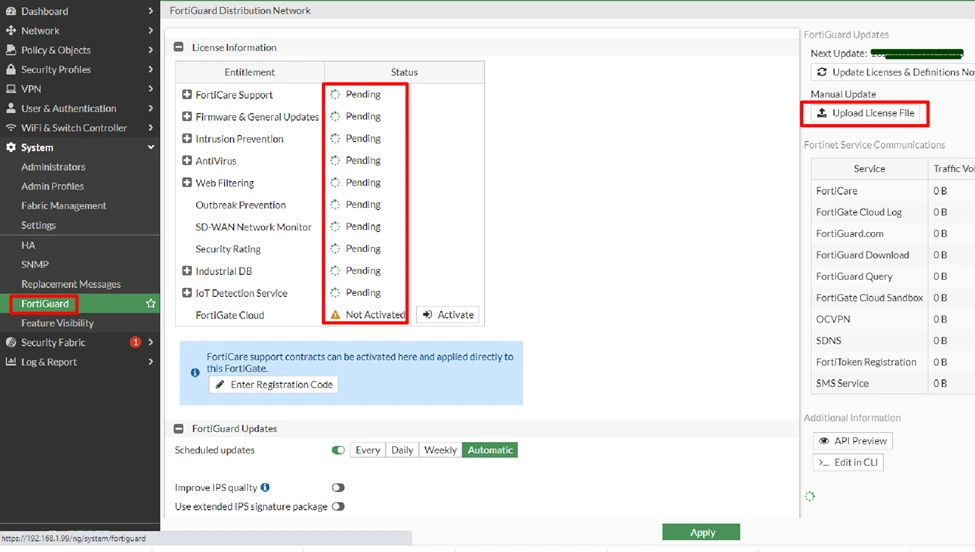
In the above screenshot, all licenses are pending status as not connected with the internet.
Let’s connect to the internet
The license will activate successfully after connecting internet as showing an expiry date check the below screenshot

In the next post, I will explain the practical implementation of HA Configurations of the FortiGate firewall.
Still, if you face any issues write a comment or send me an email, I will support you remotely.